通过开门触发的 60 秒倒计时 UI
信息
本教程适用于 Horror Game Kit 用户。
概述
本教程将指导你创建一个 60 秒倒计时计时器,当场景中的门被打开时自动开始。计时器会显示在 UI 上并倒数至零,倒计时结束后可触发你需要的后续游戏事件。
前置条件
- 熟悉 Horror Game Kit,尤其是 事件触发器 组件和脚本编写。
- 准备一个倒计时 UI 资源,格式为 ZIP 或 Bytes。本教程使用名为
Timer_fui.bytes的 Bytes 文件,你可以点击下载。
步骤 1:搭建场景
-
使用 从零开始(Start from Scratch)模板创建新项目。
-
通过 包管理 > 恐怖游戏资源 > Unlocked Door V1.0(Packages > Horror Game Assets > Unlocked Door V1.0)将 Unlocked Door V1.0 智能资源添加到场景。该资源包含带有开关检测逻辑的门模型。
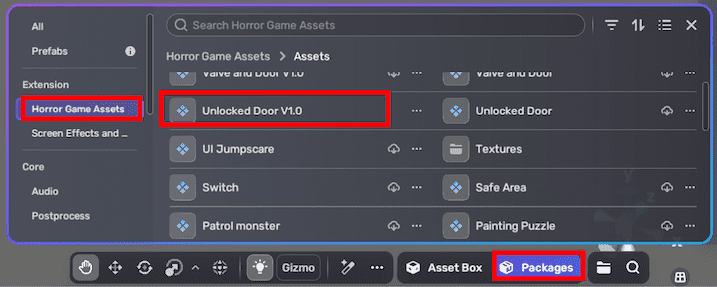
-
按需调整门的位置和旋转。
提示
大多数 AI 生成场景 的门已自带此组件。
步骤 2:导入倒计时 UI 资源
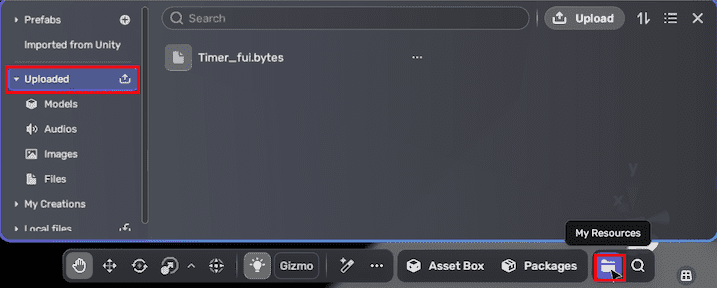
在编写倒计时逻辑前,先进入 我的资源 > 已上传(My Resources > Uploaded),点击 上传(Upload)按钮,将 UI 文件上传到本地资源。
步骤 3:配置触发事件
-
在 场景资源浏览器(Scene Explorer)中,通过 创建 > 空对象(Create > Empty Object)添加一个空对象,并重命名为 Game Start Event。
-
在空对象上通过 添加组件 > 事件触发器(Add Components > Event Trigger)添加 自定义事件通知器(Custom Event Notifier)组件。该组件可在被触发时发送自定义事件。
-
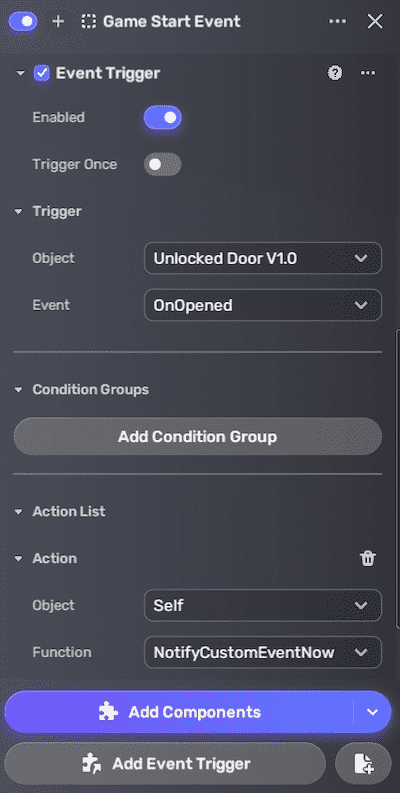
通过 添加事件触发器(Add Event Trigger)为空对象添加事件触发器,配置如下:
- 触发对象(Trigger Object):设置为门资源。
- 触发事件(Trigger Event):设置为 OnOpened。
- 动作对象(Action Object):设置为 Self(即 Game Start Event 对象)。
- 动作函数(Action Function):设置为 NotifyCustomEventNow。 这样设置后,门被打开时会发送自定义事件。
步骤 4:编写倒计时脚本逻辑
- 在场景中添加一个空对象并重命名为 Countdown。
- 在该对象的属性窗口(Properties)中,点击 添加脚本(Add scripts)为其添加新脚本。
- 在
Countdown.editor.lua中定义属性字段:
local fieldDefs = {
    {
        name = "triggerEventObject",
        type = "GameObject"
    },
    {
        name = "seconds",
        type = "integer",
        default = 60,
        extendedProperties = {
            min = 1
        }
    },
    {
        name = "UIPackage",
        label = "UI Package",
        type = "File",
        extendedProperties = {
            includeTypes = {"bytes"}
        }
    },
}
script.DefineFields(fieldDefs)
triggerEventObject:触发倒计时的对象(即 Game Start Event)。seconds:倒计时总时长(默认 60 秒)。UIPackage:倒计时 UI 资源包。
- 在
Countdown.lua中实现运行逻辑:
local initialTotalSeconds = script.fields.seconds
local currentTotalSeconds = initialTotalSeconds
local showCountdown = false
local countdownRunning = false
local timerView

local function GetMinutesSeconds(totalSeconds)
    local minutes = math.floor(totalSeconds / 60)
    return minutes, seconds
end

local function ShowTimerUI()
    -- 此处显示倒计时 UI
end

local function RefreshTimerUI()
    local minutes, seconds = GetMinutesSeconds(currentTotalSeconds)
    -- 刷新 UI 显示
end

local function HideTimerUI()
    -- 隐藏倒计时 UI
end

script.OnStart(function ()
    -- 加载 FairyGUI 资源包
    timerView = UIPackage.CreateObject("Timer", "Main")
end)

script.OnUpdate(function ()
    if not countdownRunning then
        return
    end
    -- 倒计时逻辑
end)

function StartCountdown()
    if showCountdown then
        RefreshTimerUI()
    end
end

function PauseCountdown()
    if not showCountdown then
        countdownRunning = false
    end
end

function ResumeCountdown()
    if not showCountdown then
        countdownRunning = true
    end
end

local eventObject = script.fields.triggerEventObject
local callback = function ()
    StartCountdown()
end
if eventObject then
    yahaha.EventSystem:RegisterObjectEvent(eventObject, "com.yahaha.sdk.trigger.CustomEvent", callback)
end

script.OnDispose(function()
    yahaha.EventSystem:UnregisterObjectEvent(eventObject, "com.yahaha.sdk.trigger.CustomEvent", callback)
    YaUIPackage.RemovePackage(script.fields.UIPackage)
end)
脚本关键函数说明:
GetMinutesSeconds:将总秒数转换为分钟和秒,便于 UI 显示。ShowTimerUI:将倒计时 UI 组件挂载到屏幕(GRoot)上,显示计时器。RefreshTimerUI:刷新 UI 上的分钟和秒数。HideTimerUI:将倒计时 UI 从屏幕移除。StartCountdown:启动倒计时。PauseCountdown:暂停倒计时。ResumeCountdown:恢复倒计时。script.OnUpdate回调中,利用UnityEngine.Time.deltaTime计算每帧流逝时间,实时刷新倒计时。
步骤 5:完善倒计时设置
在 Countdown 对象的属性窗口中,确保脚本字段填写如下:
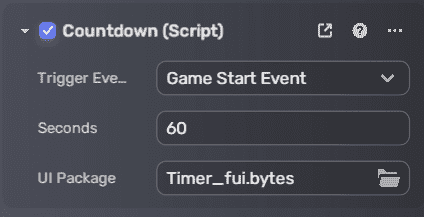
- 触发事件对象(Trigger Event Object):Game Start Event 对象。
- seconds:倒计时时长(默认 60)。
- UIPackage:上传的倒计时 UI 资源。
步骤 6:测试
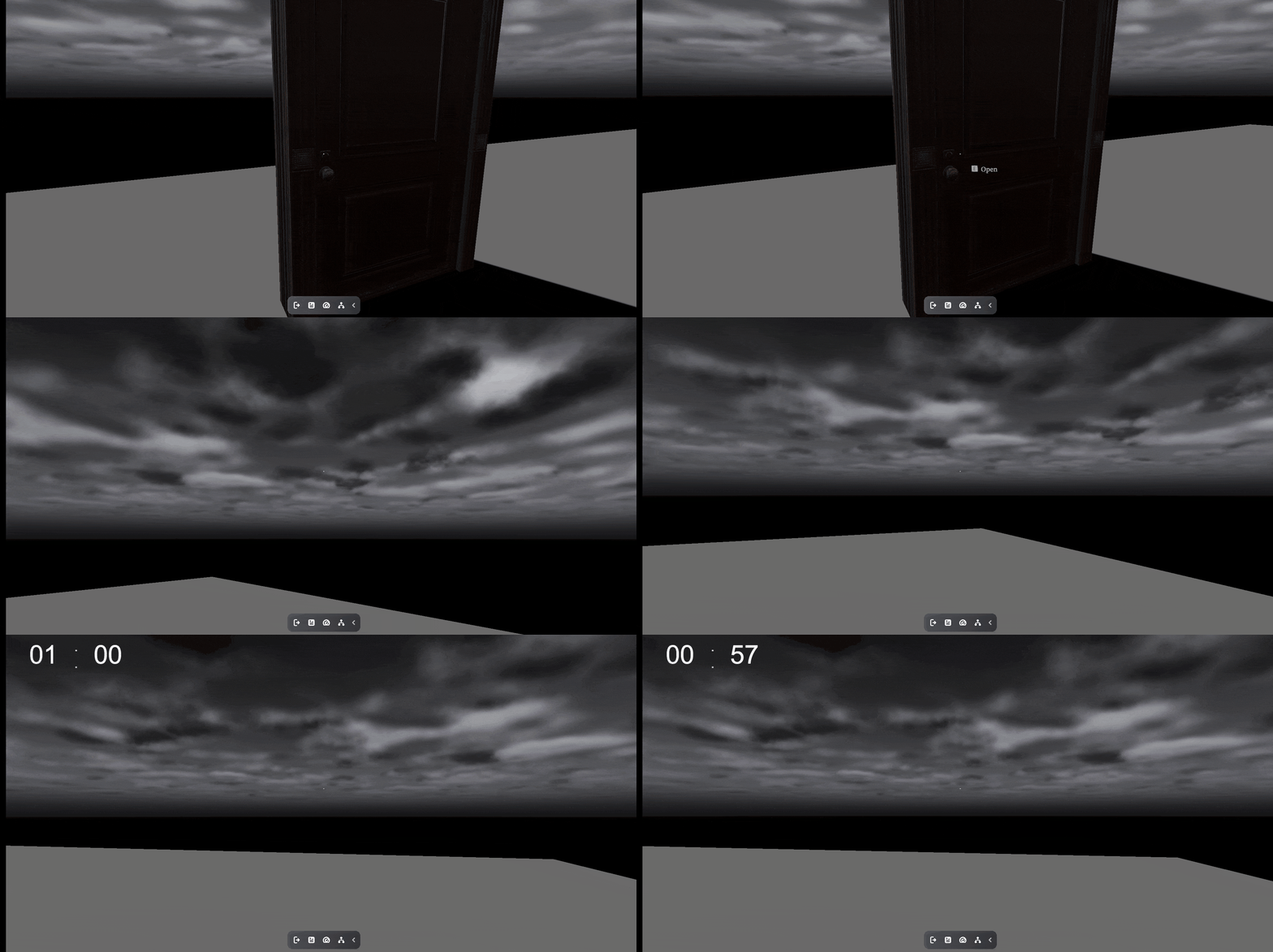
进入播放模式(Play Mode),打开门。倒计时 UI 应会出现并从 60 秒倒数至 0,每秒刷新。
故障排查
- 事件未触发:
- 检查自定义事件通知器是否已挂载到接收对象。
- 确认脚本中的事件名与事件触发器配置一致。
- 无响应或无动作:
- 检查事件触发器设置是否正确,动作是否指向正确(如播放音效)。
- 确认脚本字段引用的对象已正确赋值。
- 脚本报错或异常:
- 使用 F12 打开控制台查看调试日志,确认脚本是否正常运行。
- 检查所有对象是否已激活且在场景中可用。